OphionTT Help & Getting Started
Welcome to OphionTT.
OphionTT is a time tracking and work logging tool built for people who work in interruptions: IT professionals, consultants, engineers, developers, and anyone whose day is shaped by tickets, requests, and context switching.
This is not a productivity game. It’s not surveillance. It’s a memory aid.
If you’ve ever reached the end of the day and thought “What did I actually do today?” — OphionTT is for you.
The Philosophy (Read This First)
Most time trackers assume work happens in clean blocks.
Real technical work doesn’t.
OphionTT is designed around:
- Interruptions
- Tickets and references
- Follow ups
- Long running tasks
- Context switching
Capture what you’re doing now. Describe it when you can. Find it later.
You don’t need perfect notes. You need enough signal to reconstruct your work when it matters.
The Core Workflow
- Start a timer when you begin something
- Stop it when you’re interrupted or done
- Add details later if needed
- Use History to remember, report, or follow up
Everything else in OphionTT supports that flow.
Today Dashboard
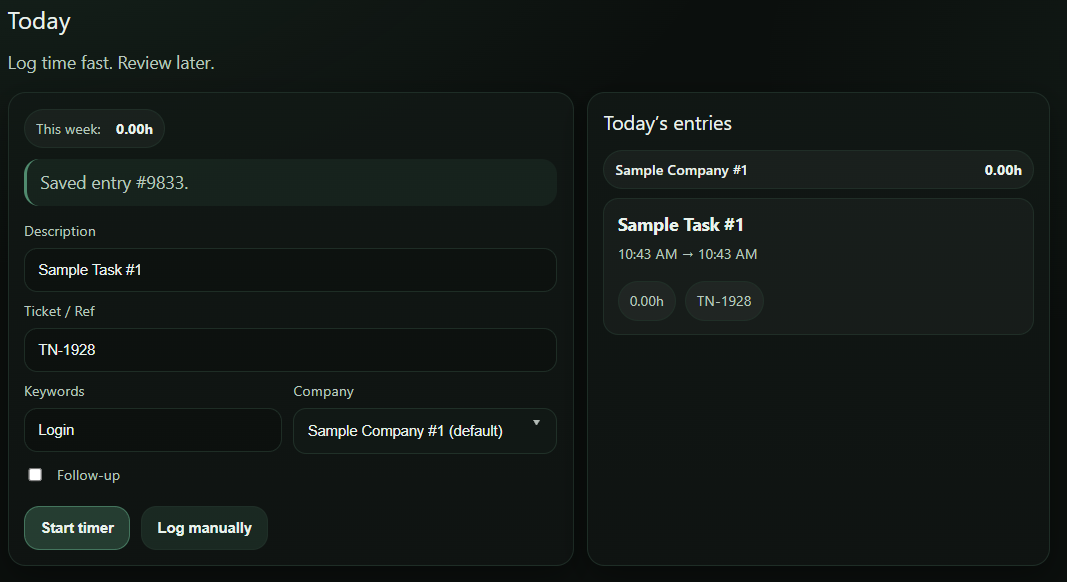
What you’ll see
- Entries grouped by company
- Description, ticket/reference, and follow up flag per entry
- Per company daily totals
- A running week total
This view answers one question:
“What did I work on today?”
Descriptions vs Details
Description is the headline:
Investigate MFA enrollment failures
Detail is the long form context:
Logs reviewed, tenant mismatch suspected, follow up required with identity team.
You don’t need both every time. Use what’s useful.
Time Tracking
Live Timers
- Start when you begin work
- Stop when you’re done or interrupted
- Reset if the entry should be discarded
Timers are meant to be lightweight. Don’t overthink them.
Manual Time Entry
Manual entries are useful for retroactive logging or cleanup.
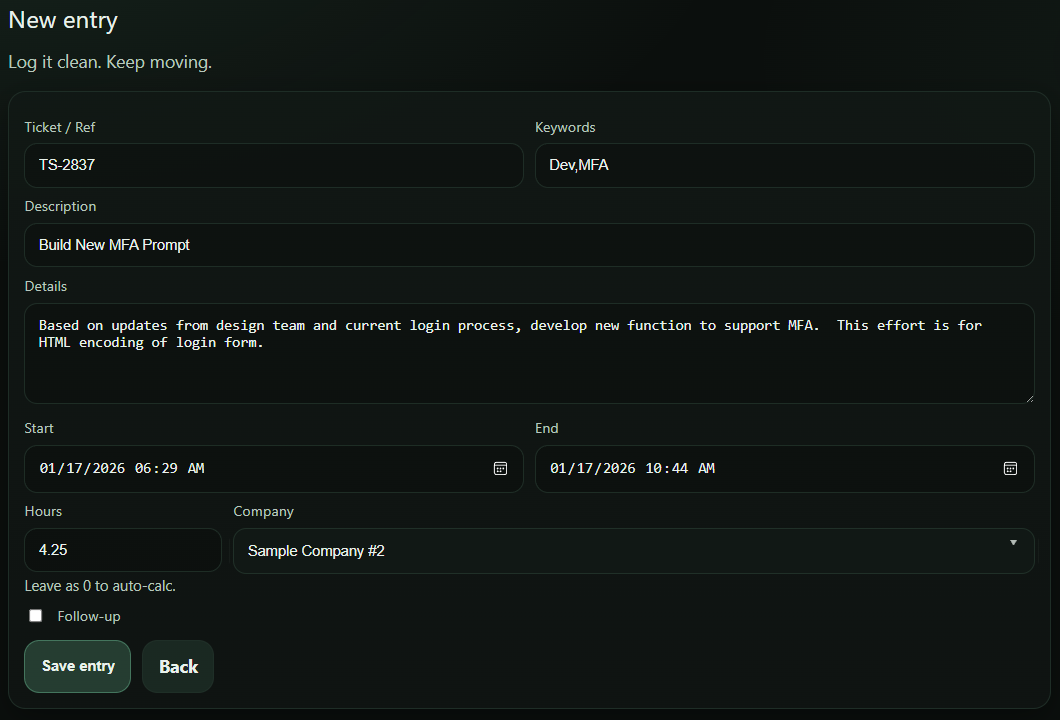
Start and end times automatically calculate elapsed hours.
Follow Ups
Follow ups exist because real work rarely finishes cleanly.
- Work that needs revisiting
- Blocked tasks
- Waiting on someone else
Follow ups keep unfinished work visible without forcing artificial completion.
Companies
The companies screen is the place where you define companies or teams the you perform tasks for. This is useful for reporting purposes later, and generally keeps things tidy for you.
Companies are per user. There is no shared or global directory.
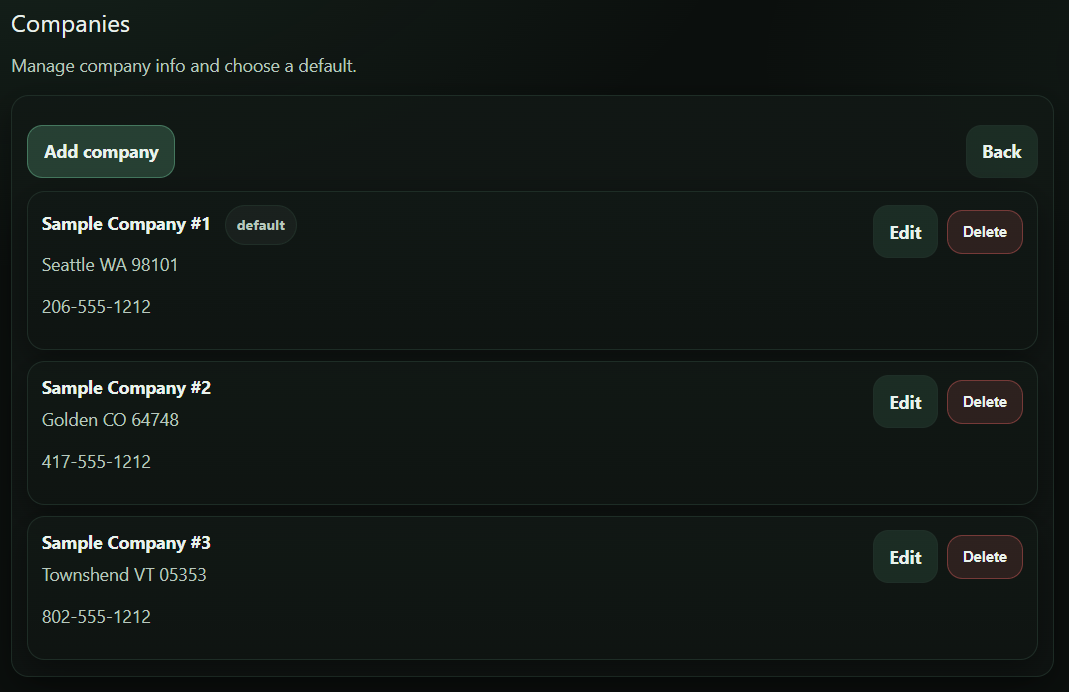
- Group entries on Today
- Filter History
- Power reports and exports (coming soon)
History
History exists to answer questions you didn’t know you’d need to ask yet.
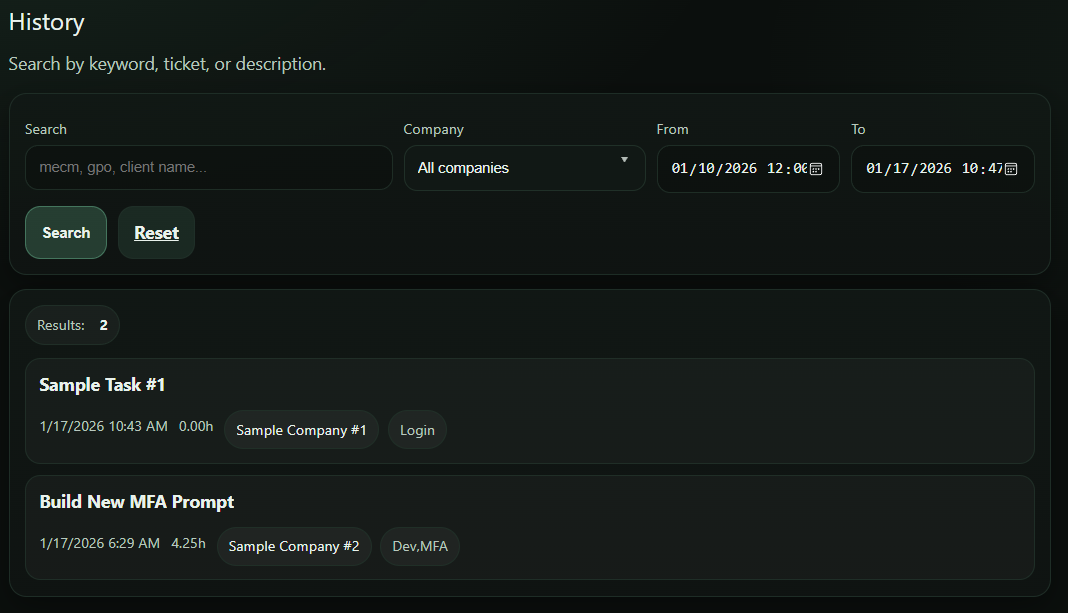
- Date range browsing
- Search across descriptions, details, tickets, and keywords
- Company filtering
- Edit any past entry
Reports
The Reports page is for totals and exports: billing, compliance, or just proving to yourself that the week wasn’t a hallucination.
- Date range — pick a start and end date
- Company filter — narrow results to one company (or show all)
- Follow-ups only — show just the things you still owe future-you
- Summaries — per-company totals and per-day totals
- Export (CSV) — one-click, spreadsheet-friendly download
Billing mode (client-friendly)
Use this mindset when the output is going to a client or invoice. Keep it clean, readable, and defensible.
- Descriptions should read like short ticket summaries.
- Detail is optional — include only what supports the work.
- Keywords are for you (not the client). Use them sparingly if you plan to share exports.
- If you’re exporting, consider filtering to one company and a tight date range.
Rule of thumb: if you wouldn’t say it in a billing email, don’t put it in Detail.
Compliance mode (audit-friendly)
Use this mindset when you may need to justify work later: security reviews, regulated environments, or internal audit trails.
- Include enough Detail to reconstruct what happened and why.
- Always attach a ticket/reference when one exists.
- Use Follow-ups as a visibility tool: it’s your “open loop” list.
- Keywords help later discovery. Add them if you expect to search months from now.
Rule of thumb: write like Future You will be asked to explain this in 90 days.
Keyboard Shortcuts
Core actions
- s — Start timer
- x — Stop timer
- r — Reset timer
- n — New entry
Navigation
- g t — Today
- g h — History
- g r — Reports
- g c — Companies
- g n — New entry
Search & Help
- / — Focus History search (when not typing)
- F1 — Toggle help
- Ctrl + / (or Cmd + / on Mac) — Toggle help
- ? — Toggle help (only when you’re not typing)
- Esc — Blur active field
Writing Good Entries
- Write descriptions like commit messages
- Use tickets when they exist
- Keywords are optional
- Optimize for recall, not precision
What OphionTT Is Not
- Surveillance
- Micromanagement
- Productivity theater
OphionTT is built for individuals who want to understand their work — not be judged for it.
What’s Next
Reports and CSV export are now live. Here’s what’s on deck next:
- Richer exports — alternate layouts for invoicing/compliance, optional columns, and “follow-ups only” export
- More report views — totals by ticket/ref, keyword, and “time by project” style rollups
- Saved presets — remember date ranges + filters you use repeatedly (end-of-week, end-of-month, per-client billing)
- PDF / print-friendly summaries — something you can drop into an email without fighting formatting
OphionTT works best when it fades into the background. Track lightly. Describe when useful. Search when it matters.
If it helps you remember your work, it’s doing its job.